
The short version
- My AI assistant goes through my email and sorts it three ways: things I need to do, things worth reading, and things that aren’t worth my time.
- It archives the junk, drafts replies to basic things, and puts what I need to know in my morning brief.
- It never deletes anything. Archiving just moves email to a separate folder.
- It doesn’t send anything without my approval (the one exception: reminders to my husband).
- I check what it archived, and when it gets one wrong, I tell it so it does better next time.
- Any AI assistant connected to your email can do this. I use Muse, Meta’s AI assistant.
- Just want the instruction? Jump to it.
I get a lot of junk in my inbox… and the important stuff is usually not at the top. It’s the line at the bottom of a long email. The deadline in the last paragraph. The stuff I might have missed.
What does AI do with my inbox?
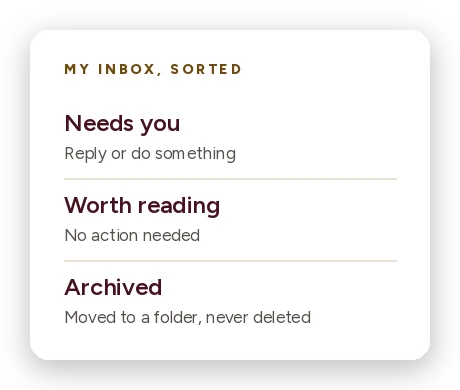
My AI assistant reads through my inbox and sorts everything into three groups. Anything that needs me becomes an action item. Anything important but with nothing to do stays for me to read. Everything else gets archived. Then what I need to know shows up in my morning brief.
| Group | What it finds and what it does |
|---|---|
| Needs you | Something I need to do or answerLists it as an action item, and drafts a reply if it’s a basic one. |
| Worth reading | Something worth reading, with no action neededLeaves it in my inbox for me to read. |
| Archive | Something that isn’t worth my timeMoves it to a separate folder. Never deletes it. |
It also catches the stuff at the bottom of an email that I might have missed. It tracks it, puts it in my morning brief, and reminds me about it later if I haven’t handled it yet.
How do I set this up?
Connect your AI assistant to your email, tell it what matters to you, and give it one instruction. Then check its work for a while… the corrections are what make it good.
- Connect your email. Check what your AI assistant can connect to. You can start with reading only.
- Tell it what matters. Who you always need to answer. What’s just an FYI. What’s never worth your time.
- Give it the instruction below. Change anything that doesn’t fit your inbox.
- Read the summary and check the archive. Especially the first few weeks.
A starting point for your AI (change it to fit your inbox)
Go through my email inbox. Sort everything into three groups: things I need to do or reply to, things worth reading that need no action, and things that aren’t worth my time. List my action items first. Leave the worth-reading emails in my inbox. Archive the rest, which means moving it to a folder. Never delete anything. Before you draft any replies, go back through my sent emails to learn my writing style and voice, and write a short guide you can reference whenever you draft for me. Draft replies to basic emails in my voice, but never send anything without asking me first. Watch for dates, deadlines and requests at the bottom of long emails. Then give me a summary that lists everything you did.
Where did I start doing this?
At work. I was at a tech company, and we had access to AI. I set it up with Claude first, and later with Glean, which I also helped other people learn how to use.
I created a skill (a saved set of instructions) that knew everything about me. My team. My projects. My priorities. The stakeholders I always need to respond to. What’s worth my time, what’s not, and what’s just an FYI.
Then it went through my inbox:
| What it did | How it worked |
|---|---|
| Sorted my inbox | Listed my action items. Left anything important for me to read. Archived anything that wasn’t worth my time. |
| Filed things away | Put anything my team had already closed out in a special folder. Saved reference files for broader comms in their own folder, since I led the internal comms team. |
| Drafted replies | Looked for context first, then drafted replies on my behalf. It never sent them. |
| Reported back | Sent me a detailed summary listing everything it did. |
There were plenty of times I sent a reply straight from the draft… it saved me a bunch of time.
Want this for your team? I set this up for myself at work, then helped coworkers build their own. If your team wants help making AI work for your inbox, I’m available for consulting. Say hello on my contact page.
Is it harder to do this at home?
Not anymore. When I first wanted to set it up at the house, Claude needed a lot of extra context, and it just seemed like a lot of work.
The tools have gotten so much better since then… Now I use Muse for most of my personal stuff at home. I call my AI assistant Percy, short for personal assistant. I haven’t had to train it that much. After a few conversations back and forth, it just sort of knows what I want, and it handles it for me.
Should I let AI send emails for me?
At work, I never let it send. That was important to me. It drafted, and I sent.
At home, I do let it send emails for me on low-risk things, like asking a few companies for a quote on chimney cleaning. But only after I’ve approved it.
Mine has a few limits:
- It never sends an email without my explicit approval. The one exception is reminders and information it passes to my husband.
- It can archive things on its own. Archiving just moves them to a separate folder.
- It never deletes anything. I don’t ever want it to erase something I needed.
- It can recommend things to unsubscribe from, but it can’t unsubscribe without my approval.
At work, every draft had a line at the top saying it was drafted by Heather’s inbox agent, with a link that talked people through creating their own. If you send AI drafts to other people, that line is worth adding.
How do I get it right over time?
Check what it archived. I always checked that it archived things properly.
Tell it when it’s wrong. If something was off, I talked with my AI assistant and got it fixed for next time.
Is it worth it?
In a 2024 Censuswide survey for Yahoo of 2,004 US parents with school-aged kids, 62% said they’d missed an important event or detail in their inbox, and 52% said they feel overwhelmed by their personal inbox.
My morning brief won’t make the email stop. It does make it a lot easier to find the parts that matter.
I really like knowing my inbox is one thing I don’t have to worry about so much. I don’t have to check it constantly. I know it’s being handled, and I check it when it’s convenient for me.
Keep going: how I get my whole day in one message before the kids wake up · how I’m saving $675 a year on subscriptions with AI
About the author: Heather Pocorobba has spent 15 years in communications, simplifying complex topics and answering the question “what does this mean for me?” She writes AI at Home with Heather, showing how anyone can use AI to get more of the household to-do list done without giving up family time.
Leave a Reply